
Finding specific information inside scanned documents and images requires Optical Character Recognition (OCR). Traditional operating system searches cannot read text inside image-based PDFs, causing professionals to lose vital documents. File Brain solves this by combining local OCR with semantic search, automatically extracting text from over 1,000 file formats on your machine. This practical guide explains how to index and search your scanned files entirely offline, ensuring absolute data privacy.
We've all been there: you know exactly what a document contains, but finding it feels impossible. This is especially true for older contracts, physical invoices, or hastily scanned PDFs.

The Pain Point: The "Invisible" Text Problem
Standard OS tools — like Windows Search or macOS Spotlight — and fast third-party apps — like Everything — rely almost entirely on file names or superficial metadata. They look at the shell of the document, not its contents.
Imagine you need to find a specific "liability clause" in a scanned court document, or an urgent "invoice" from an old contractor. If the file happens to be named scan_00142_final.pdf or IMG_8392.jpg, native search tools will return zero results. To these tools, the text inside the image is effectively invisible. You are forced to manually open dozens of files, hoping you stumble upon the right one.
The Local Solution & The Privacy Guarantee
To solve this, a search engine needs to "read" the images using Optical Character Recognition (OCR). While many cloud services offer this, uploading confidential invoices or legal contracts to a third-party server represents a significant privacy and security risk.
How File Brain Works
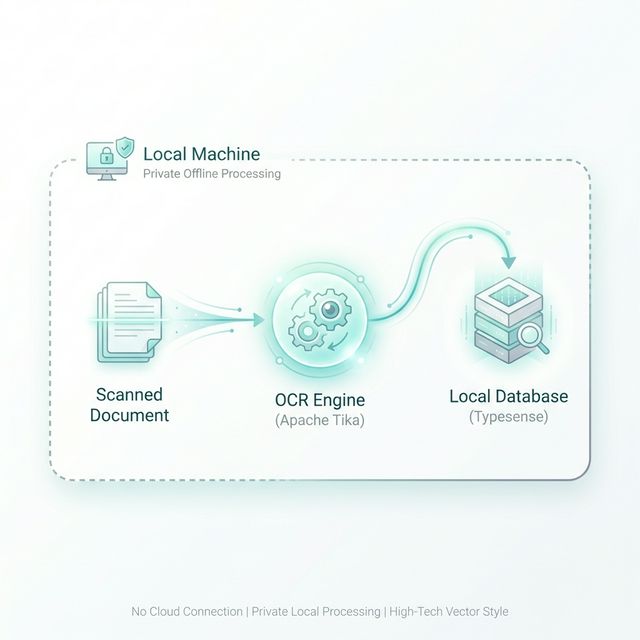
Once installed, File Brain runs silently in the background. It utilizes an embedded version of Apache Tika— an industry-standard toolkit for content detection and analysis — to process your files.
Reframing the Installation
You will notice that File Brain requires Docker Desktop and Python 3.11+. This is undeniably more complex than installing a standard, lightweight app. However, this friction is the ultimate privacy feature.
To achieve enterprise-grade OCR without uploading your sensitive data to the cloud, File Brain uses a local containerized engine. This setup ensures absolute data sovereignty: your files never leave your machine, and your searches remain completely private.
Step-by-Step Execution
Setting up your private, OCR-capable search engine involves a straightforward initial process:
1. Initialization
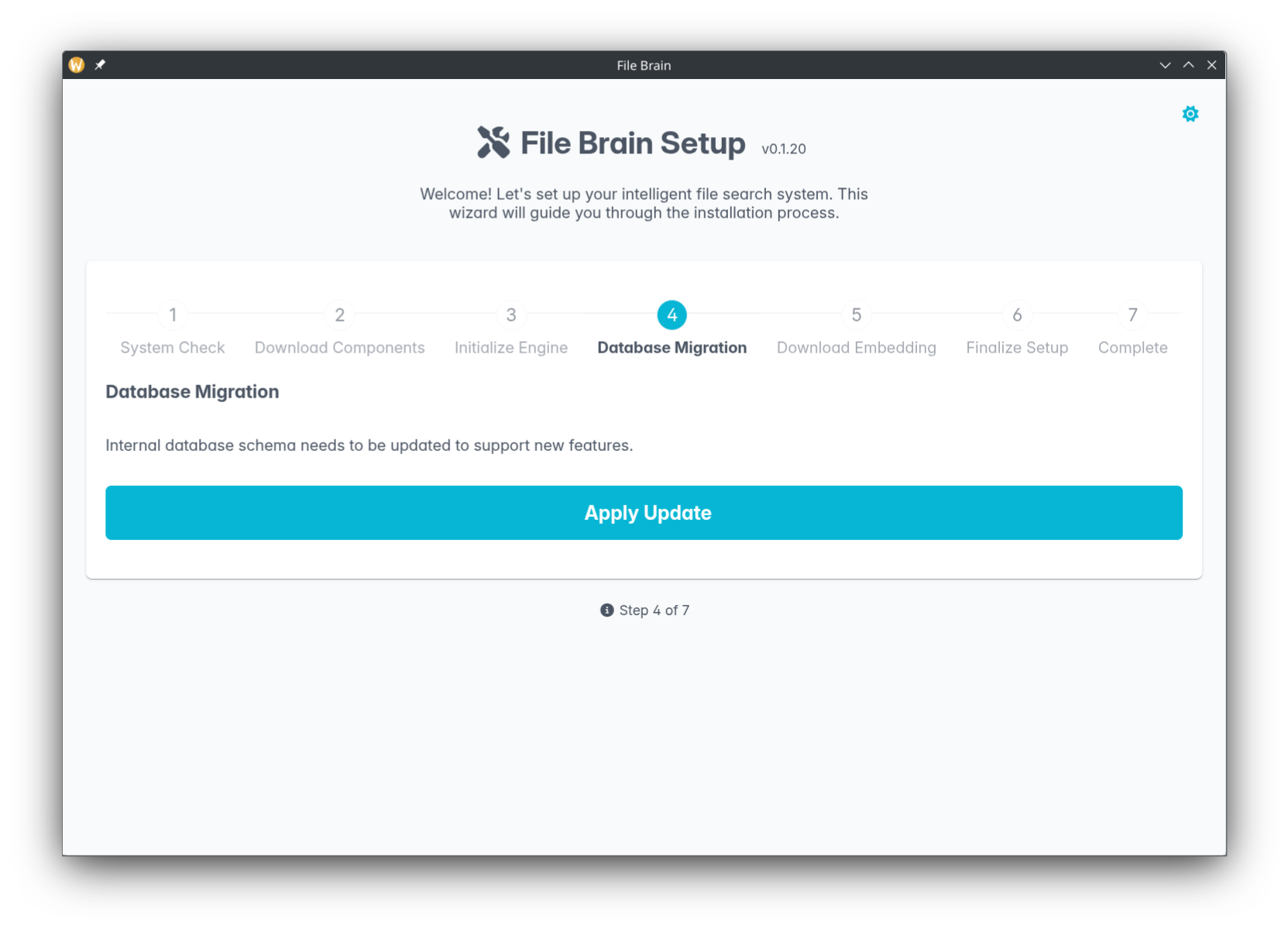
Upon launching File Brain for the first time, you are guided through a setup wizard. This wizard performs a System Check, downloads the necessary Docker components, and initializes the local search engine.
2. Managing Expectations: The Initial Indexing
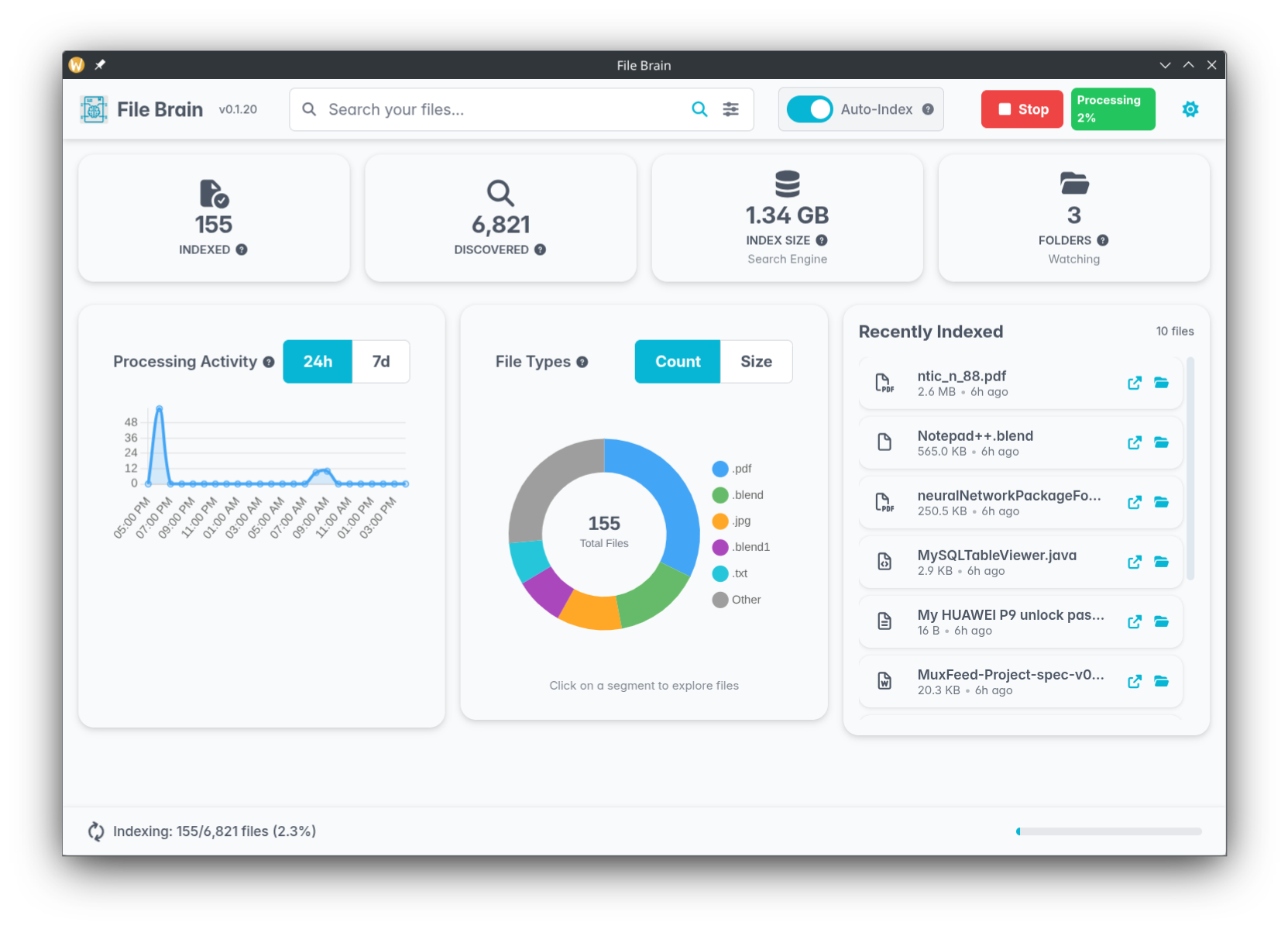
Once setup is complete, you will need to add the folders you want to search through and manually click the "Index" button to begin. Because File Brain is performing complex OCR and generating vector embeddings locally, this initial process requires computational overhead and may take some time depending on the size of your document library.Crucially, this is a one-time operation. Once indexed, future searches are practically instantaneous, and you can enable Auto-Index to keep things updated in the background.
3. The First Search
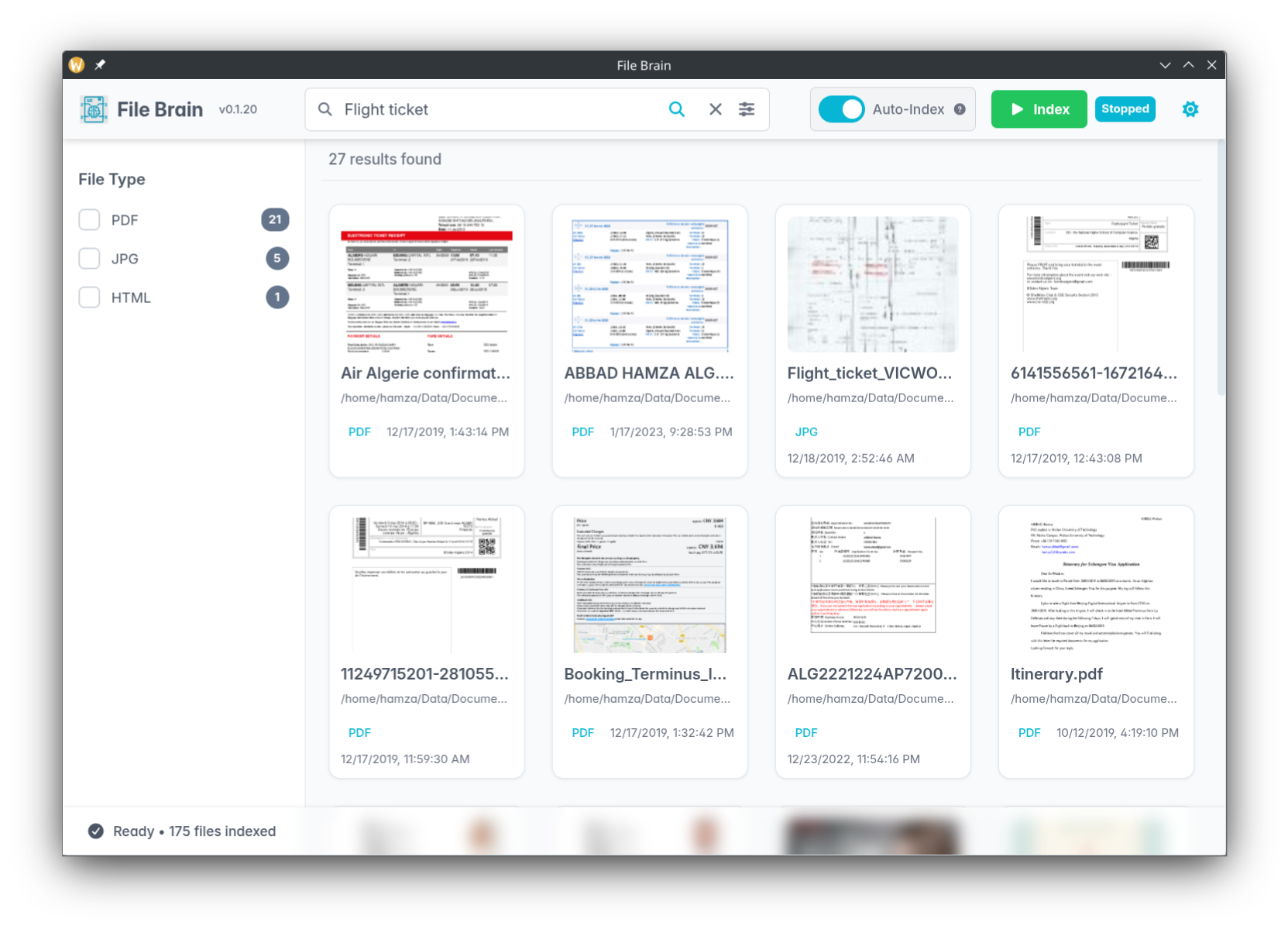
Now for the magic. Instead of trying to remember the exact file name, simply type a conceptual phrase into the search bar — like "Flight ticket". File Brain will instantly retrieve the correct document, even if it is a poorly named scanned PDF like scan_00142_final.pdf.
Beyond Text: The Media Suite Pro
File Brain's free tier easily extracts readable text from your scanned documents. However, modern workflows often involve visual assets that contain no text at all.
If you need to search for evidentiary photographs, design assets, or specific video scenes, the Media Suite Pro upgrades the engine to understand visual content. This allows you to search for "birthday cake" and instantly retrieve photos containing a cake, even with absolutely no text metadata attached to the image files.
To ensure complete peace of mind, the Pro tier is offered as a perpetual license (a one-time payment). It is not a mandatory SaaS subscription, meaning you own the upgrade forever without recurring financial anxiety.
Want to learn more about the underlying technology? Read our comprehensive guide on Local Semantic Search.